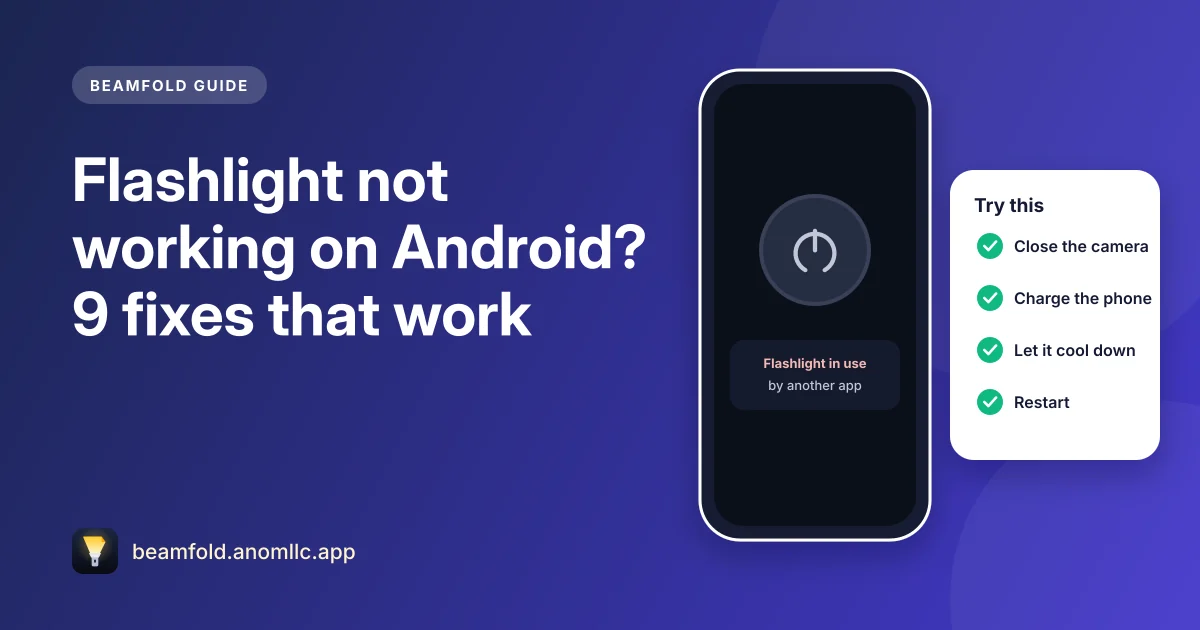
When an Android flashlight won't turn on, the cause is usually not the LED itself. The most common reasons are that another app is using the camera, the battery is low, or the phone is too warm, and the phone blocks the flash until that changes. Work through these fixes in order; most problems are solved by the first three.
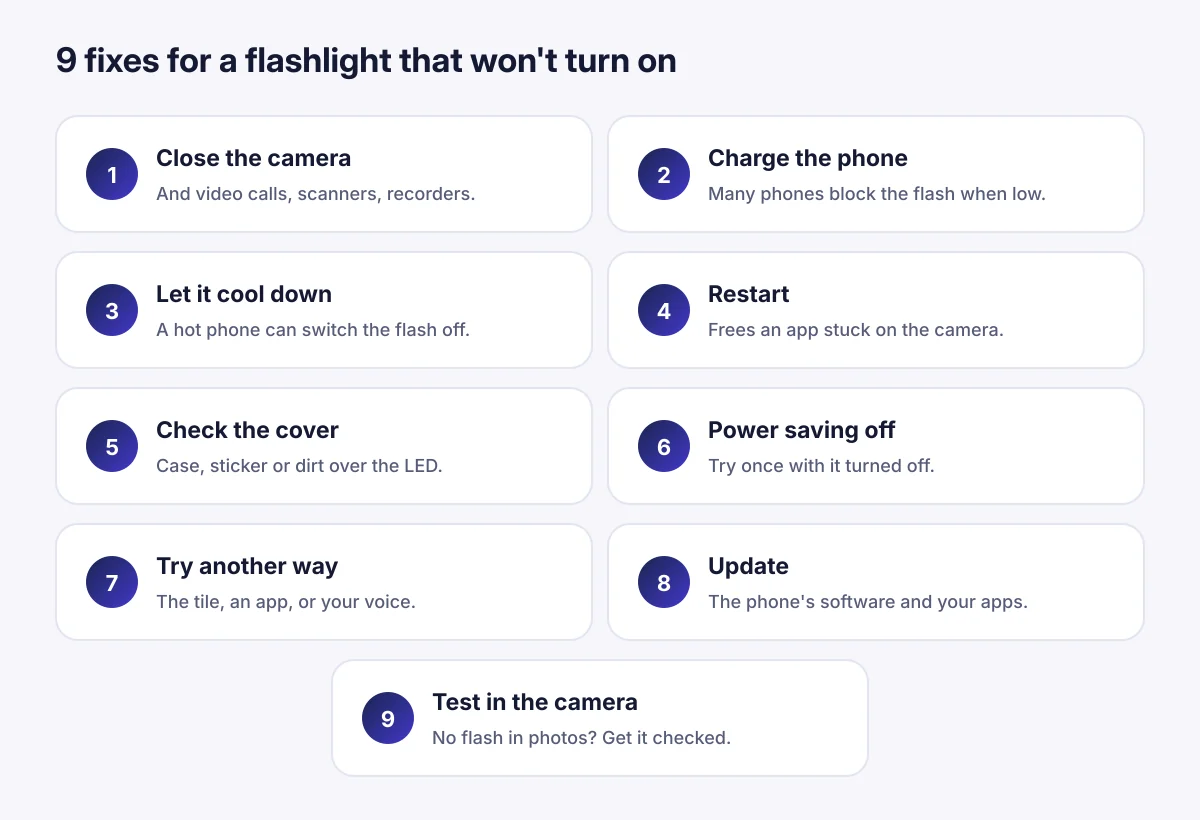
1. Close the camera, and apps that use it
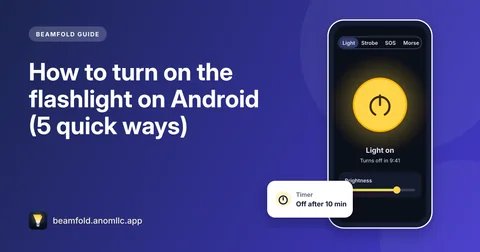
The flash belongs to the camera, so while an app has the camera open, nothing else can use the flashlight. Close the Camera app, video calls, QR code scanners and video recorders, then try again. In Beamfold you'll see "The flashlight is in use by another app" when this happens.
2. Charge the phone
Many phones turn off the flash when the battery is low, to keep enough power for calls. Samsung Galaxy phones, for example, show a message that the flash is disabled because the battery is low. Plug the phone in for a few minutes and try again.
3. Let the phone cool down
A hot phone (after gaming, charging in the sun or long video calls) can block the flash to protect itself. Take it out of the sun, remove a thick case for a while, and try again after a few minutes.
4. Restart the phone
A restart closes any app that is holding on to the camera in the background, and it fixes most one-off glitches. Hold the power button (or power and volume up on some phones) and choose Restart.
5. Check the flash isn't covered
A case, a sticker or dirt over the small LED next to the camera blocks the light. Clean it gently with a soft, dry cloth and check that your case has a hole for the flash, not just for the lens.
6. Turn off power saving for a moment
Some power-saving modes limit extra features. Turn power saving off from Quick Settings, try the flashlight, and turn it back on afterwards if you need it.
7. Try another way to turn it on
If the Quick Settings tile doesn't respond, try a flashlight app, or the other way round. If one works and the other doesn't, the problem is that tile or that app, not the flash. Updating or reinstalling the app usually fixes it.
8. Update your phone and apps
Open Settings > System > Software update (or Software update on Samsung phones) and install any update, then update your apps in Google Play. Flash problems after an update are often fixed in the next one.
9. Test the flash in the camera
Open the Camera app, turn the flash on (the lightning icon) and take a photo in a dark room. If the flash fires for photos, the hardware works and the problem is software, so a restart, an update or safe mode should help. If it never fires, the LED or its connection may be damaged, and a repair shop or the phone maker's support is the next step.
While you wait: use the screen
If you need light right now, your screen can be a flashlight. Turn the screen brightness all the way up and open something white, or use Beamfold's Screen light, which makes the whole screen a white, warm or red light at full brightness. It works on every phone, flash or not.