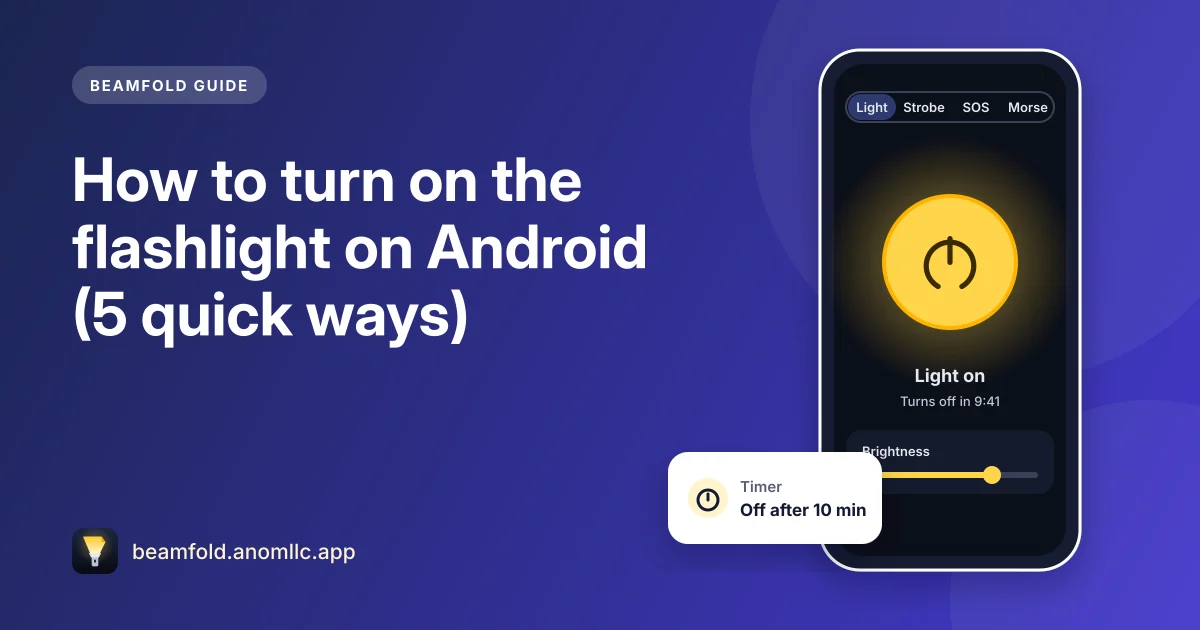
The fastest way to turn on the flashlight on an Android phone is the Quick Settings panel: swipe down from the top of the screen and tap Flashlight (on some phones it's called Torch). That works on almost every phone. There are four other ways too, and one of them is handy when your hands are full or the phone is locked.
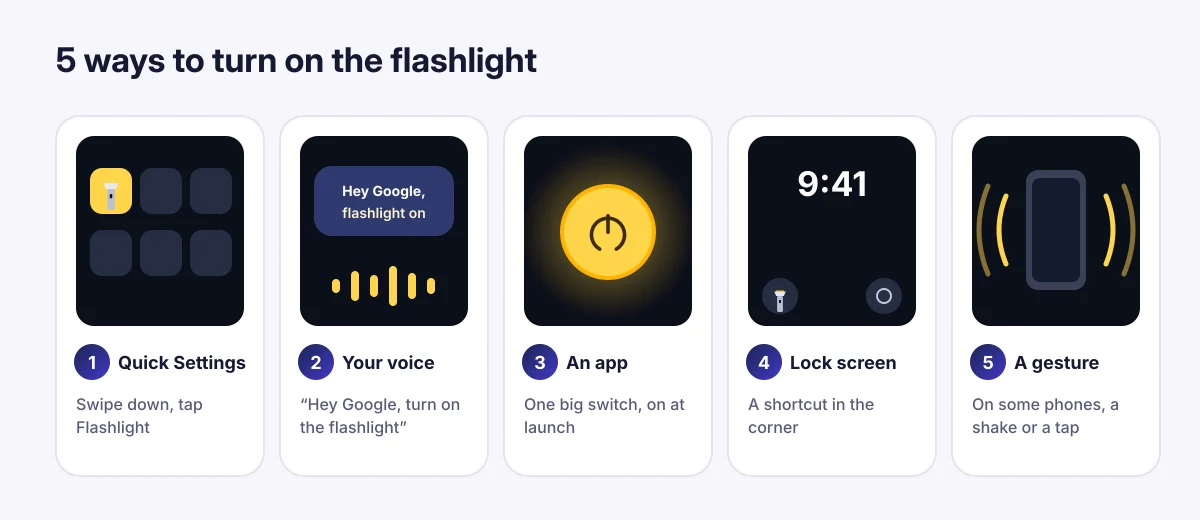
1. Quick Settings (works on almost every phone)
- Swipe down from the top of the screen. On many phones you need to swipe down twice to see all the tiles.
- Tap Flashlight (or Torch). The light comes on straight away.
- Tap it again to turn it off.
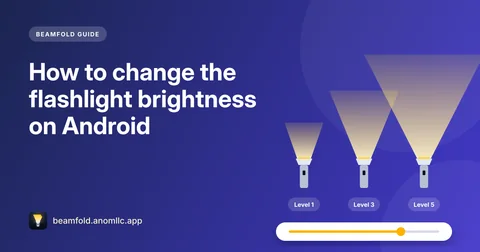
If you can't find the tile, tap the pencil or Edit button in Quick Settings and drag Flashlight into the first row. On recent Pixel phones and on Samsung Galaxy phones, a long press on the tile also lets you change the brightness. Our guide to flashlight brightness on Android has the details.
2. With your voice
Say "Hey Google, turn on the flashlight" (or "turn off the flashlight"). It works from the lock screen on most phones, which makes it the easiest option when you're carrying bags or your hands are wet. If nothing happens, check that Google Assistant or Gemini is set up and allowed to answer on the lock screen.
3. With a flashlight app (Beamfold)
A flashlight app puts a big switch on the screen, which is quicker to hit in the dark than a small tile, and adds things Quick Settings doesn't have:
- Open Beamfold. It can turn the light on as soon as it opens, so opening the app is all you do.
- Tap the big round switch to turn the light on or off.
- Set a timer if you might forget it, for example "Off after 10 minutes", to save battery.
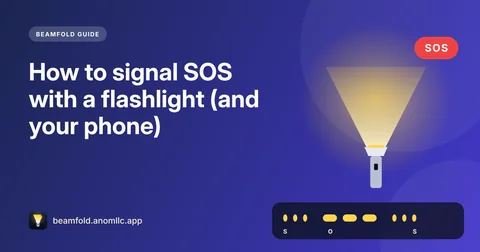
Beamfold doesn't ask for the camera or any other permission: Android lets apps switch the flash without opening the camera. It also has SOS, strobe and Morse modes and a screen light for phones without a flash.
4. From the lock screen
Some phones have a flashlight shortcut on the lock screen itself. On many Samsung Galaxy phones you can set the shortcuts in Settings > Lock screen > Shortcuts; on other phones, look for a flashlight icon in the bottom corner of the lock screen and press and hold it. Quick Settings also opens from the lock screen, so a swipe down works there too.
5. With a gesture
A few phones turn the flashlight on with a gesture. Motorola phones, for example, use a "chop chop" shake, and some phones let you double-tap the back of the phone. Look in your phone's Settings > Gestures (or Advanced features) to see what yours supports.
How to turn it off fast
Use the same way you turned it on: tap the tile again, say "turn off the flashlight", or tap the switch in the app. If you've left it on while the phone is in your pocket, swipe down from the top of the screen; a flashlight that's on shows its tile highlighted.
Save battery while you use it
- Turn the brightness down if your phone supports it. You rarely need full power to find keys in a bag.
- Use a timer so the light doesn't stay on all night if you fall asleep reading.
- Use the screen instead for very short tasks near your face, like reading a menu. A white screen at full brightness is softer and doesn't dazzle anyone.
If the flashlight won't turn on
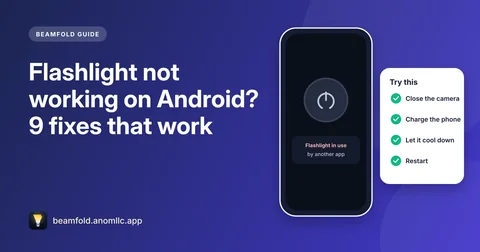
The usual reasons are that another app is using the camera, the battery is low or the phone is too warm. Our guide on what to do when the flashlight isn't working goes through all the fixes.